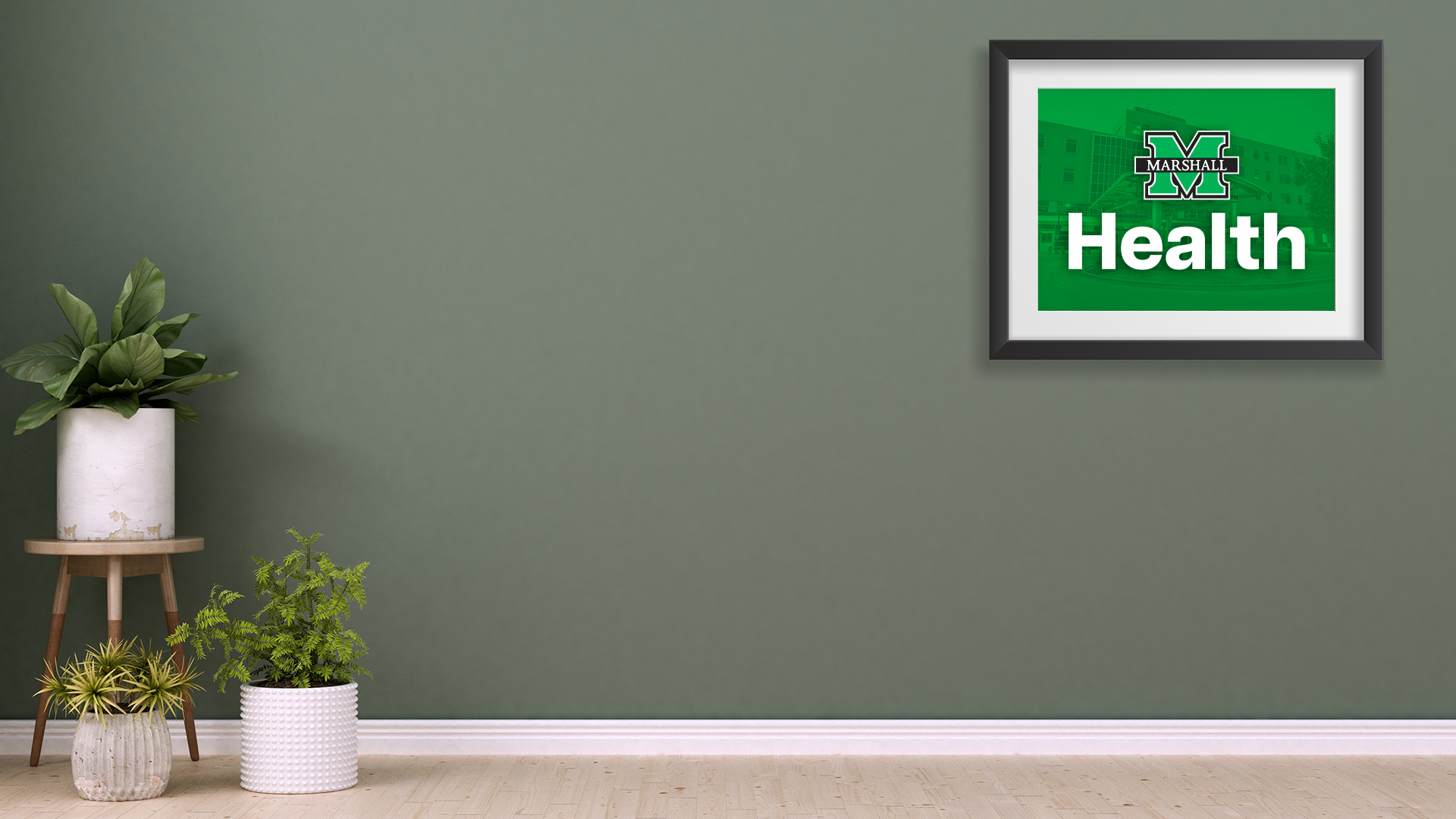
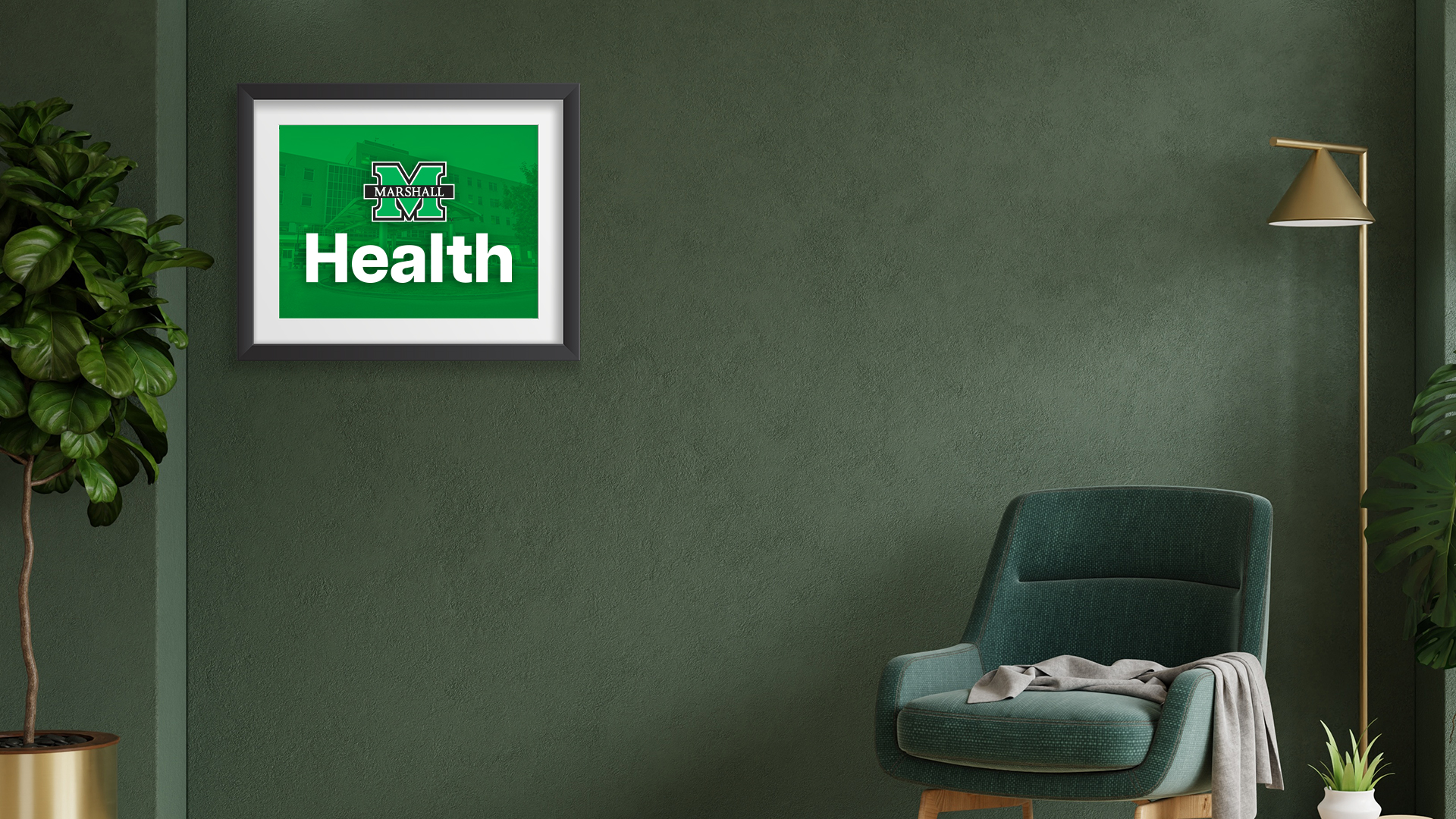
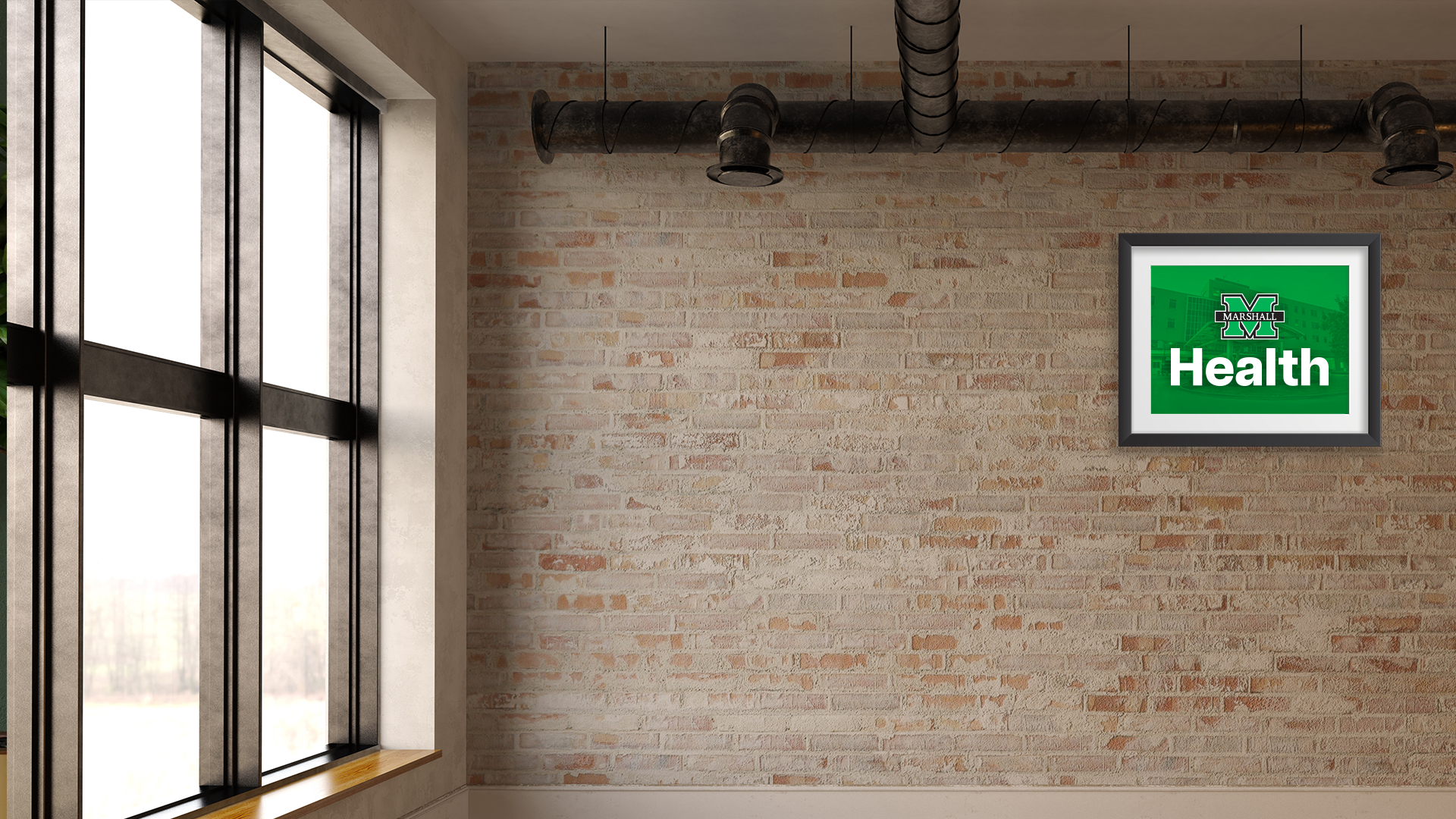
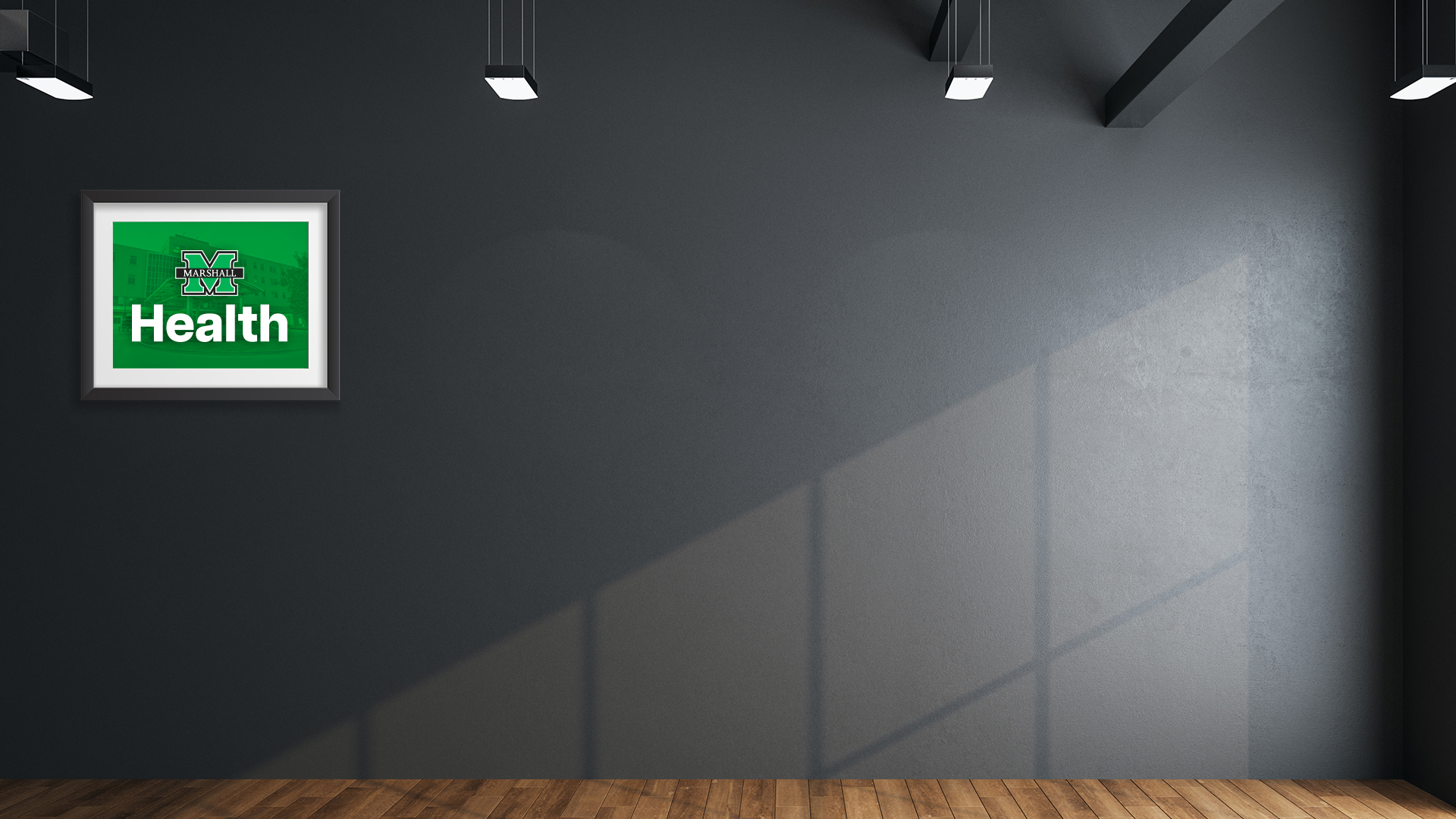
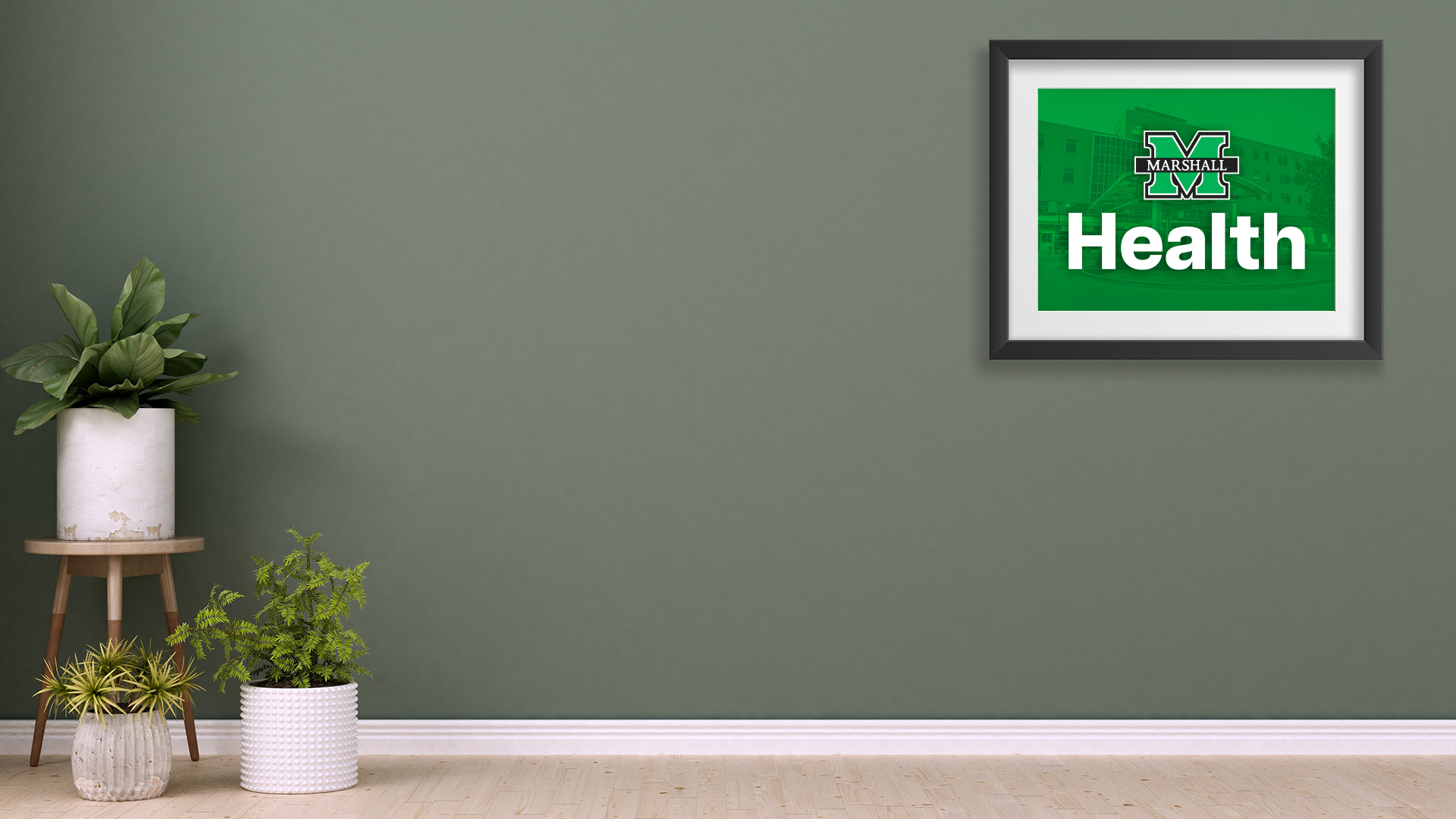
Represent our organizations professionally during your next video conference or meeting with these Marshall-inspired virtual backgrounds. You can personalize your virtual background with these custom images sized to fit a 1920 x 1080 pixel (px) screen.
For more information about how to upload a virtual background, please visit:
School of Medicine Backgrounds [Insert images and download links]
Marshall Health Backgrounds
How to Add a Background to Your Microsoft Teams Call in 3 Easy Steps
PREPARE YOUR IMAGE. Ensure your desired background image is available on your drive or desktop.
ACCESS BACKGROUND SETTINGS BEFORE THE CALL. Before joining a meeting, look at the left side of the screen where your video preview is displayed. Enable your camera. Click on “Background filters,” then click “+ Add New” at the top and select your image file.
APPLY THE BACKGROUND DURING THE CALL.
If you’re already in a meeting, click on the “… More” option in the top bar.
Select “Background filters” from the list.
Follow the same steps to add your image and click “Apply” to set it as your background.